

Introduction to Computer Memory
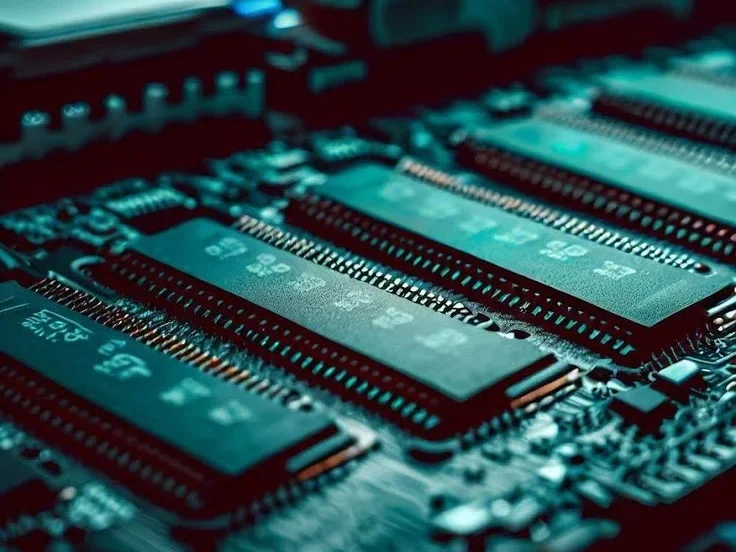
Computer memory is one of the most important components of a computer system. It stores data, instructions, and information that the computer needs to perform tasks. Memory allows the CPU to access data quickly, process information efficiently, and produce accurate results. Without memory, a computer cannot function. Computer memory is the “electronic equivalent of a brain’s storage area.” It is the computer’s workspace where it holds the information it requires for it to function. This space holds all the information that the computer requires for it to run applications. Memory size usually comes in gigabyte measurements.
What is Computer Memory?
Even though individuals commonly use these two terms synonymously, their usage is different .
Memory (Short-term): “Like the desk in your workspace. It holds what you’re currently working on. It is extremely fast but small.”
Storage (Long-term): Just like a filing cabinet. It retains all your documents and programs. It is larger, but it is also slower access.
The Binary Concept
In essence, computer memory functions with the help of Binary. It provides information in the form of a combination of the number 0 and the number 1, denoted by ‘bits.’
A “1” indicates an electrical circuit that is “on” or a capacitor that is charged. A “0” indicates a path that is “off” or a discharged capacitor .Computer memory refers to the electronic storage space used by a computer to hold:
- Program instructions
- Input data
- Intermediate processing results
- Final output
It acts as a bridge between the user, software, and hardware.
Functions of Computer Memory
The process of memory operation is called cycle of Fetch, Decode, and Execute.
Loading: When your computer is turned on, the “Startup Instructions” are retrieved from the permanent chip (ROM) on your computer. Next, the Operating System (such as Windows or Mac) is loaded from the slow Hard Drive (Storage) to the fast RAM (Memory) in your computer.
Addressing: Each bit of information stored in memory has its distinct Memory Address (address akin to the address on a house). The CPU employs these addresses to locate and jump to particular information in memory.
Capacitor Cycle (DRAM): Today, most RAM used in computers is based on the capacitor cycle (DRAM), which relies on small capacitors to store information. However, since these small capacitors leak electricity, the system must be refreshed thousands of times per second to prevent information loss. Computer memory performs several key functions:
- Stores operating systems and applications
- Holds data while programs are running
- Supplies instructions to the CPU
- Saves processed results for output
Types of Computer Memory
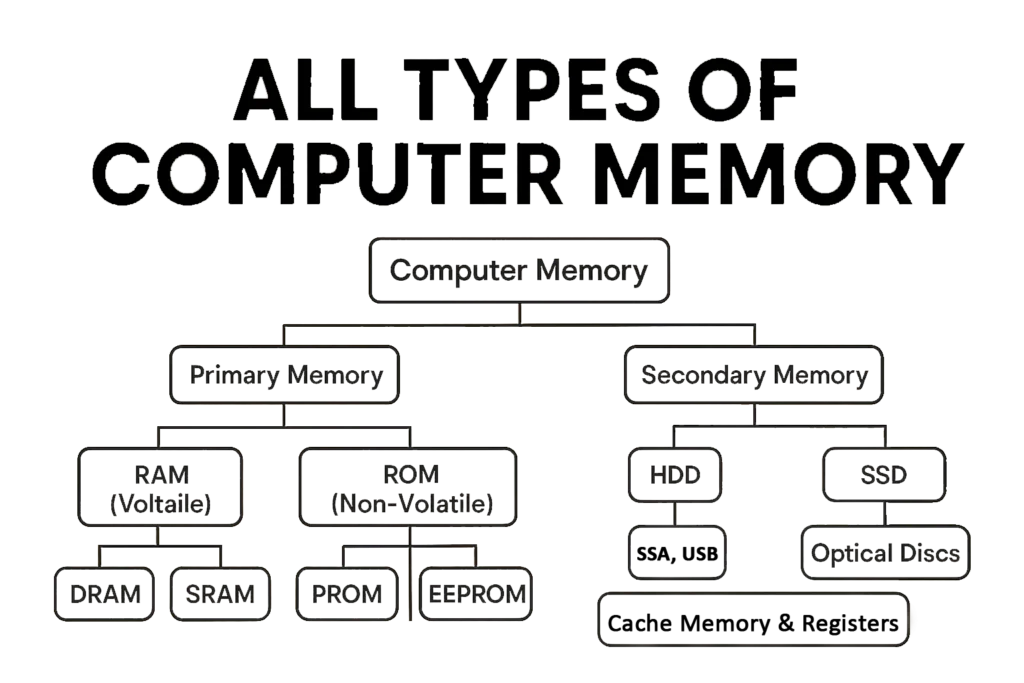
Computer memory is broadly divided into two main types:
- Primary Memory
- Secondary Memory
Primary Memory (Main Memory)
Primary memory is directly accessed by the CPU. It is fast but limited in size. Main memory, or primary memory, is a volatile memory that provides fast storage and retrieval of data. It acts as a temporary repository for data currently being executed by the CPU. Such data consists of both instructions, or codes, required for processing, and results of these processed instructions.
Random Access Memory (RAM)
RAM is volatile memory, meaning data is lost when power is switched off.
Key Features of RAM:
- Very fast access speed
- Temporary storage
- Read and write operations
- Essential for multitasking
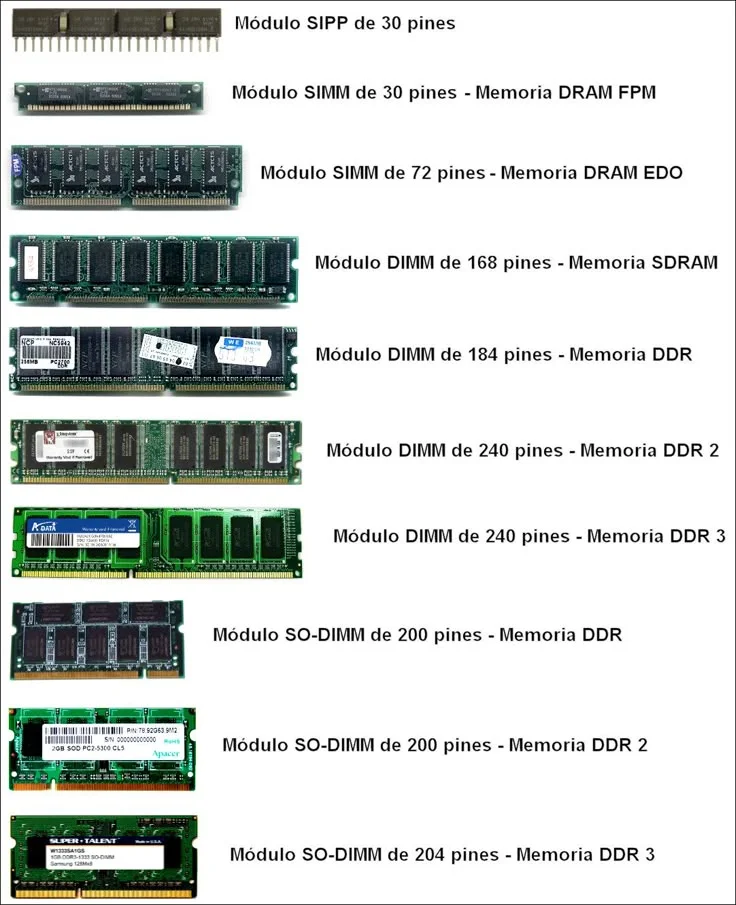
Types of RAM:
- SRAM (Static RAM): SRAM stores a bit of data on four transistors using two cross-coupled inverters. The result is that this kind of RAM is faster and more reliable than DRAM, but it is also more expensive. SRAM finds applications where speed and reliability are crucial. Faster and Expensive.
- DRAM (Dynamic RAM): Slower but cheaper, used as main memory. Dynamic RAM (DRAM) In an integrated circuit, DRAM stores bits of data in discrete capacitors. The capacitors leak charge, and the information fades unless it is periodically refreshed by recharging the capacitor with correct voltage. Due to its construction, DRAM is cheaper than SRAM.
SRAM versus DRAM
SRAM differs from DRAM in that it is faster, less volatile, and more reliable. On the flip side, DRAM is cheaper and has greater storage capacity. The choice depends on the purposes to which a computing device has been put.
Read Only Memory (ROM)
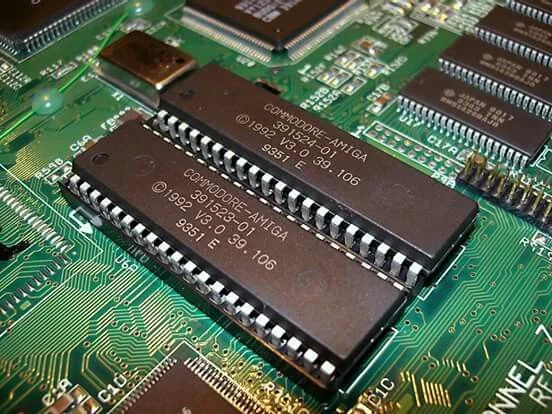
ROM is non-volatile memory that stores permanent data. A non-volatile memory, used mainly in computers and other electronic devices. Suggestive of its name, data stored in ROM is not electronically alterable upon manufacture of the memory device. ROM is used for booting up the computer and loading the operating system.
The major features of ROM are as follows −
- ROM is Non-volatile.
- An Advanced ROM can be rewritten.
- Data or information stored in a ROM can be “read-only.”
- ROM retains the data even after the power is switched off.
- The read only feature provides data stability and integrity.
“ROM usage happens during the boot-up process that a computer undergoes.”
Functions of ROM:
- Stores BIOS and firmware
- Helps start the computer (booting process)
- Retains data even without power
How Read Only Memory (ROM) Works?
ROM operates by employing the concept of memory cells, which are made up of transistors in a series form to allow the passage of current when the device is turned on. The current flowing through the transistors creates a magnetic field capable of storing data in the memory cells until such a point when the data is erased by another current passing through the transistor. The data stored in the memory cells cannot be deleted or modified unless commanded by an outside source like the computer processor.
Altogether, in the computer, a small but resilient battery energizes the ROM. It comprises two primary parts, which are the decoder and the OR logic gates. The binary inputs from the ROM are translated by the decoder, which eventually converts the binary into a decimal number. The decimal value from the decoder serves as the input for the OR gates in the ROM.
ROM resembles a matrix of disks. The operation can be turned on or off by means of a matrix with rows and columns. Each spot on the matrix corresponds to a dedicated memory location in the ROM. A diode facilitates connecting the respective components. When a request call is made, the corresponding address helps to identify the memory location. The retrieved data has to correspond to the respective spot in the matrix.
Types of ROM:
- PROM: PROM stands for Programmable Read-Only Memory. It is a generic term for a blank memory chip. It can be programmed while in production and cannot be altered or erased. A PROM programmer or a PROM burner is what is needed to program details in a PROM. “PROM Burning” is what it is generally known as to program a PROM chip. After being programmed, its contents can no longer be altered. It is because of this reason that it is known as one-time-programmable.
- APPLICATIONS OF PROM: It is mostly used in Computer Bios, TV Remote Control, Video Game Consoles, and currently one day used in Mobile Phones.
- EPROM : Erasable Programmable Read-Only Memory is known by the shortened form EPROM. It is programmable and also erasable by exposing it to ultraviolet light. Erased EPROM is then capable of being reprogrammed. It is another form of a read-only memory chip that has the capacity for erasing programs already stored. Using high voltage, it is capable of programming a programmable read-only memory for storage of information that is retained until it is exposed to ultraviolet light for 10 minutes or longer.
- Applications of EPROM :It is most commonly used in video cards, memory sticks, BIOS chips, and modems.
- EEPROM: EEPROM is an abbreviation for Electrically Erasable Programmable Read-Only Memory. This technology is an enhanced version of ROM because it has the ability to erase and be reprogrammed using electrically controlled operations. This is done repetitiously for an infinite number of times, and it can be executed by a computer system when it is running or in operation. The EEPROM gives one the ability to erase and program any location they wish at any time they want. This is done in bytes in contrast to multiple or full erase operations on an EEPROM chip. EEPROM takes a significantly shorter time compared to ROM due to its enhanced features.
- Applications of EEPROM :It is used predominantly in Bios Chip and Microcontrollers for Smart Cards.
- Flash ROM: Flash Memory
It is a variant of EEPROM in which erasing or rewriting occurs in a block instead of in bytes, which helps in faster execution. It has extensively been used in memory chips, flash drives, memory cards, or SSDs as memory storage. A variant of the newer generation EEPROM memory storage has come into existence, which includes Flash Memory. Due to its novel structure with high endurance, it enables faster erasing or overwriting compared to a regular EEPROM.- Applications of Flash Memory: It has widespread usage in storage devices such as USB drives, memory cards, and SSDs.
- MROM: MROM stands for Masked Read-Only Memory. This memory device is no longer used nowadays due to obsolescence. Manufacturers are using this memory to store software and information during the manufacturing process. Therefore, it is impossible to alter, reprogram, or erase this type of pre-programmed chip later.
- Applications of MROM : It is most widely used in Network Operating Systems and Server Operating Systems.
Cache Memory
Cache memory is a small, high-speed memory located between the CPU and RAM.SRAM cache is a type of SRAM that is small, very fast, and usually found close to or even inside the CPU itself. It is like a buffer, providing a place for storing copies of the CPU’s favorite data, responses that the CPU accesses most frequently, so that it doesn’t have to wait for the RAM.
Purpose of Cache Memory:
- Reduces CPU access time
- Stores frequently used data
- Improves system performance
Levels of Cache:
- L1 Cache: Fastest, closest to CPU
- L2 Cache: Moderate speed
- L3 Cache: Shared among processor cores
Secondary Memory (Auxiliary Memory)
Secondary memory stores data permanently and is not directly accessed by the CPU.C. This is Storage. Storage is non-volatile. Storage is used for long-term data.
Characteristics:
- Non-volatile
- Large storage capacity
- Slower than primary memory
- Used for long-term data storage
Types of Secondary Memory
Hard Disk Drive (HDD):
Hard Drive or Hard Disk Drive (HDD) is a kind of storage device that is employed in laptops and personal computers. Hard Drive is a type of “non-volatile” storage drive, that is, it can retain the stored information even when no power is being delivered to it. The operating system (OS) is responsible for instructing the Hard Drive to read and write information as required by different programs. The rate at which this is done is solely dependent on the Hard Drive itself.HDDs began as enormous drives which occupied entire rooms and offered a meager 3.75 megabytes capacity. Now, in comparison, if a drive can be accommodated in a computer without difficulty and offers 18 terabytes capacity, it would not be considered small.
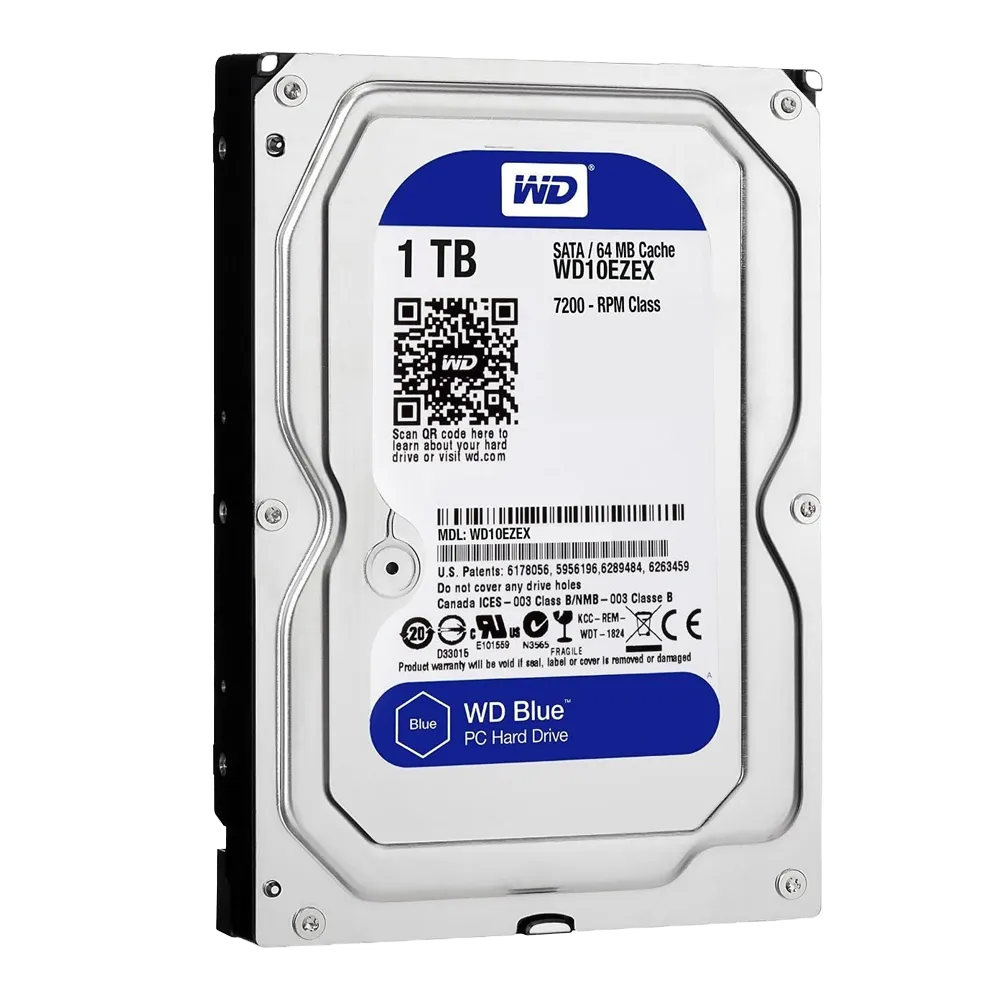
What is the mechanism of an HDD?
“An HDD has disk-like objects called ‘platters.’ These are where data is actually stored through an electric charge. This electric charge is from the ‘read/write head or actuator arm.’ The ‘read/write head or actuator arm’ is told where to move on the platters by software from the CPU and system board,” said Rodman.
“Each disk, or platter, has an arm with ‘magnetic heads,’ with each disk ‘spinn[ing] at 7200, 5800, or even 10,000 rpms’ or revolutions-per-minute, with ‘sectors’ carved up into thousands of ‘bits,’ where all bits can hold an electric charge,’” it was explained.These bits, in area or spot or position reference, are where data is placed in a computer or where data is stored in a computer, meaning all information for a computer or any computer program is in bits in a computer, according to Rodman.Indeed, Rodman correctly described basic computer components, all important in understanding computer systems
Longitudinal recording
Over the years that Hard Disk Drives have developed, there has been an evolution in the structure of sectors on the platters. The initial architecture for hard disk drives entailed longitudinal recording that had sectors line upsideways on the revolution of the disk’s spinning disk. This sidelighting posed challenges as the capacity for the HDD used smaller sectors. This made bits randomly change their polarity based on temperatures, thus resulting in errors within the bits. Perpendicular recording
“Perpendicular recording” is the technology developed for overcoming problems that occur in longitudinal recording. This technology aligns the sectors on top of each other and provides more than three times the storage capacity of the longitudinal recording system. But it also has the drawbacks of increased sensitivity to the magnetic field, which needed more precise designs for the read/write arms.
Disk fragmentation
When the CPU puts the information onto the HDD, it uses a part of the sector or sectors, depending on the information size. When there is an update in the information, the CPU tells the HDD to put the information in the following sector. The distance between the first sector and the aforementioned sector takes additional time for the information to be accessed. Although the time takes milliseconds, the more scenarios of information separation, the slower the performance. This information separation is referred to as “disk fragmentation,” and there is an installed program in most OSs that desragments the disk, placing all information for an application in one area.Performance
Usually, performance is gauged by the speed and dependability of the hardware. The rate at which HDDs perform data processing has improved over time and corresponds appropriately with its use. However, the physical parts in HDDs lead to limitations beyond what an SDD contains. A exact arm becomes less accurate if the disk spins too fast, and a disk will only rev at a rapid pace until it begins to bend or even shatter. It will take some time to accelerate the disk to the right rate to have the best performance, leading to a slower boot-up time
Solid State Drive (SSD)
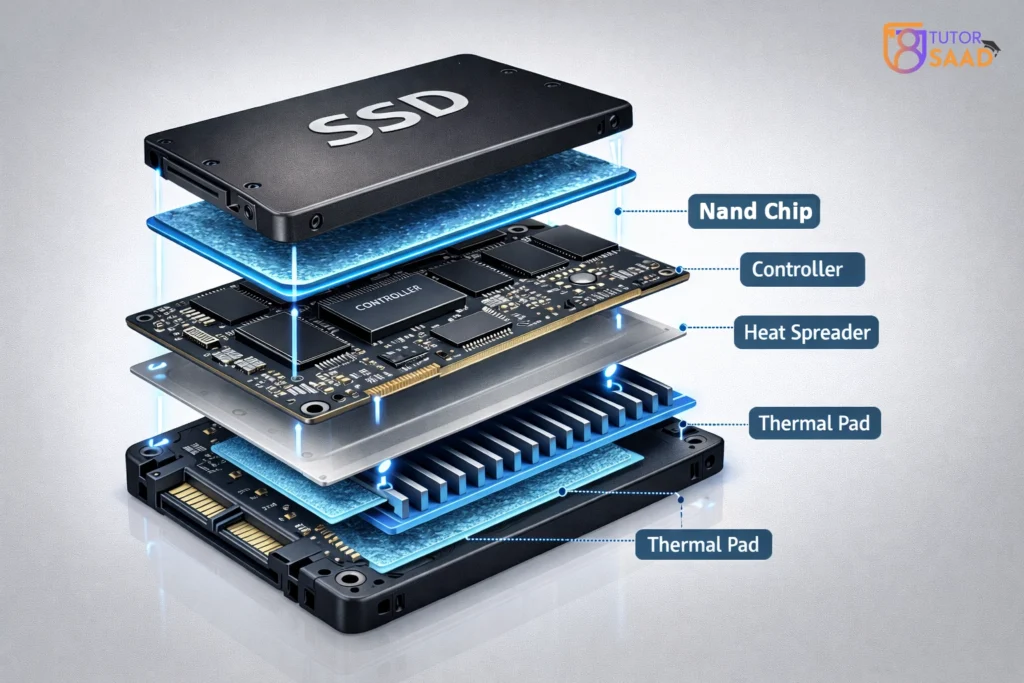
A Solid-State Drive stores and retrieves information through electronic circuits. This information is stored in something called “blocks,” and the blocks will only take a full write once. In order to keep this sequential information contig, or together, as well as to ensure that the response time takes no longer than necessary, the block must take a full write and erase on a new block. Unfortunately, this subjects the blocks to physical damage that will destroy them in the process of erasing. This erasing process represents the wear-and-tear a drive will receive, which is the reason most Solid-State Drives have ‘wear-leveling’ inserted into their system to distribute wear evenly. Some of the circuits in the SSD are NAND (“Not AND” logic gate) flash memory, which is made up of non-volatile NAND transistorsNon-volatile NAND transistors store data in the form of charge in semiconductors on silicon memory chips, which could be in rows on the circuit board or stacked into what is called 3D NAND, which has exponentially larger storage capacity since the cells are stacked one on top of the other. Single-level cells (SLC) are the costliest but also the most reliable type of SSD technology. Hence, with the additional bit of storage per cell, the cost goes down, and each additional bit of info stored is indicated in a different way. Finally, beginning with multi-level cells (MLC), triple-level cells (TLC), and quad-level cells (QLC). Controllers are responsible for managing all the flash memory cells by instructing them on the memory to access or modify. In addition to that, they are also responsible for data balancing as well as organizing the garbage collection.
Typical practices involving form factors, specifically for SSDs, are to cache the requested data with faster response time, in a manner resembling RAM modules. The faster response time is more preferable as it is relative to other storage devices when considering the cache on HDDs for hot requests, which generally have low response times. SSDs have fewer power requirements compared to HDDs since SSDs lack moving parts. SSDs also consume power from the running device. Even though SSDs lose data when the system is not on, most SSD devices have an internal battery that enables the device to enter idle mode. This enables the SSD to preserve the integrity of its data.
Optical Discs (CD, DVD, Blu-ray)
An optical disc drive (ODD) gives you the ability to access CDs, DVDs, and Blu-ray optical discs. It’s common for an ODD to enable you to burn CDs containing music, pictures, and/or video files. Optical disc drives exist in two formats, which rely on the disc loading systems they utilize. These formats are the EDrive and the conventional optical disc drives.
Tray Load drive – In a tray-load drive, the disk is placed in a tray, which is controlled by a motor and moves in and out of the computer.
Slot Load drive – This drive involves the insertion and retrieval of the disc from a slot as the motor rollers in the drive are used to move the disc.
Kinds of Optical disc and drives
CDs-ROM
The first disc drives used for modern personal computers were the Compact disc – Read-Only Memory drives. These drives are like ordinary CDs. The major difference between the two is that CDs-ROM drives use read-only media such as music, data files, or software. CD-ROM drives read audio CDs, data CDs, as well as CD-R/CD-RW writeable CDs. The maximum capacity for the usual CD-ROM is about 700 MB.
CD-R or CD-RW
CD-R/RW drives are also known as CD burners. They are capable of reading CD’s as well as writing data on write-once and rewritable CD’s.
Blu-ray
Blu-ray drives are the most advanced optical drives available in the market currently. Blu-ray drives are usually only available in systems that possess high-definition display capabilities, such as high-performance systems and PlayStation 3 video game systems. Blu-ray drives and their components have very high storage capacity, ranging from a standard 25 GB in Blu-ray disc to more than 50 GB in a Blu-ray Dual Layer disc.
USB Flash Drives
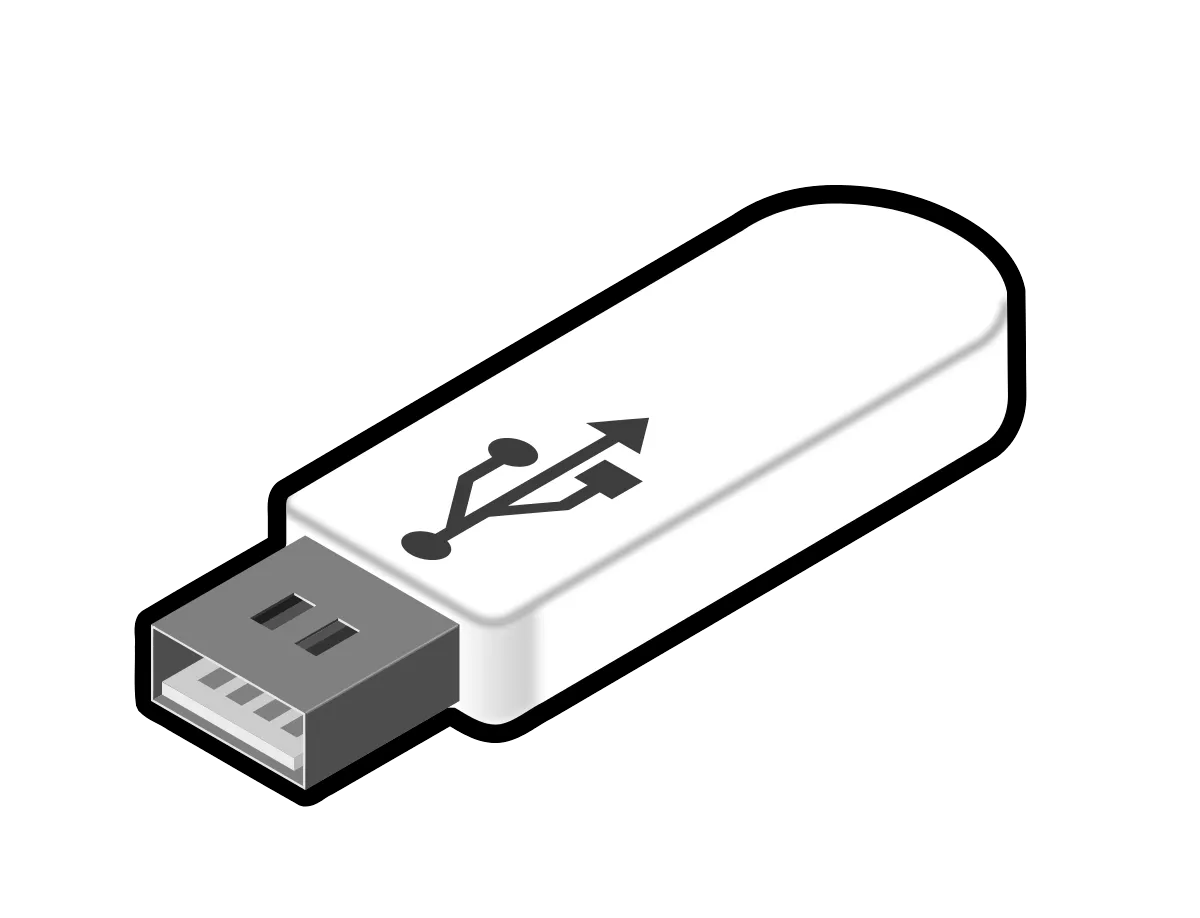
A USB Flash drive, which is also called a USB stick or a pen drive, is a plug-and-play device which has flash memory and can be held in the hand, meaning it is light enough to be hung on a keychain. A USB Flash drive can be considered a replacement for a compact disc. Once the drive is connected to the USB part on the computer, the operating system of the computer detects the drive as a removable storage device.
The first ever USB flash drive was introduced in 2000, with a memory size of 8 megabytes. Presently, storage capacities vary between 8GB, 1TB, and are likely to increase to 2TB in the future, depending on the manufacturer.
The typical memory technology used in USB flash drives has several levels of cells that allow for 3,000 to 5,000 program/erase cycles. Nevertheless, there are USB flash drives using single-level cell memory that can support 100,000 writes.
USB specifications
There are three major versions to which a USB flash drive can be connected to, namely: 1.0, 2.0, and 3.0 versions. The release of any version enables an improvement in the speed of data transfer to the previous version. There have been some other releases preceding these versions apart from others that are just updates.
USB 1.0 was launched in January 1996. This standard is available in two variants: USB 1.0 Low-Speed: It supports a data transfer rate of 1.5 megabits per second (Mbps). USB 1.0 high-speed connectivity supports a data transfer rate of 12 Mbps.
Memory Cards
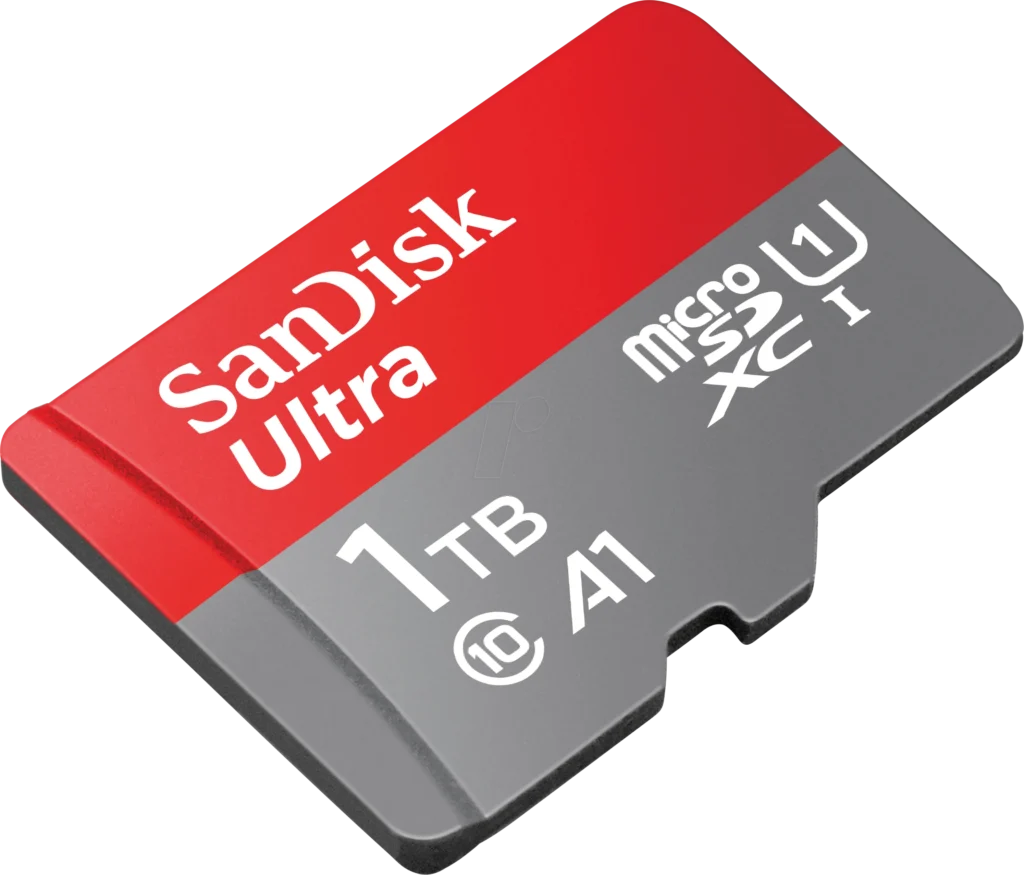
A memory card can be defined as a kind of electronic device that is used to store digital data. Memory cards are especially found in electronic devices like digital cameras and other electronic devices like the early gaming systems that are in use today; examples include the Neo Geo. Memory cards are used in adding memory to devices through a socket and not through the use of a USB stick. [1] These may be SD cards (including Micro SD cards), Memory Stick cards (developed by Sony), and CompactFlash cards.[2]
Virtual Memory
Virtual memory is a technique that uses part of secondary storage to act as additional RAM.
Advantages of Virtual Memory:
- Runs large programs
- Improves memory utilization
- Prevents system crashes
Memory Hierarchy
Memory hierarchy organizes memory based on speed, cost, and capacity.
Order of Memory Hierarchy:
- Registers
- Cache Memory
- RAM
- Secondary Memory
- Backup Storage
The Physical Architecture: Transistors and Capacitors
Within the DRAM stick itself, the memory is divided into an enormous grid of what is called “cells.”
The Capacitor: It is like a small bucket. If it is full of an electric charge, the pixel is a 1. Now, if it is empty, it is a 0.
The Transistor: Functions as a switch. It enables the computer to read the charge in the bucket or fill the bucket with charges. “Dynamic” Problem: Capacitors leak. It is like having a bucket with a small hole in it. If you don’t keep water in it, it’ll be empty. That’s why RAM needs a Refresh Cycle—they have to be “recharged” thousands of times a second
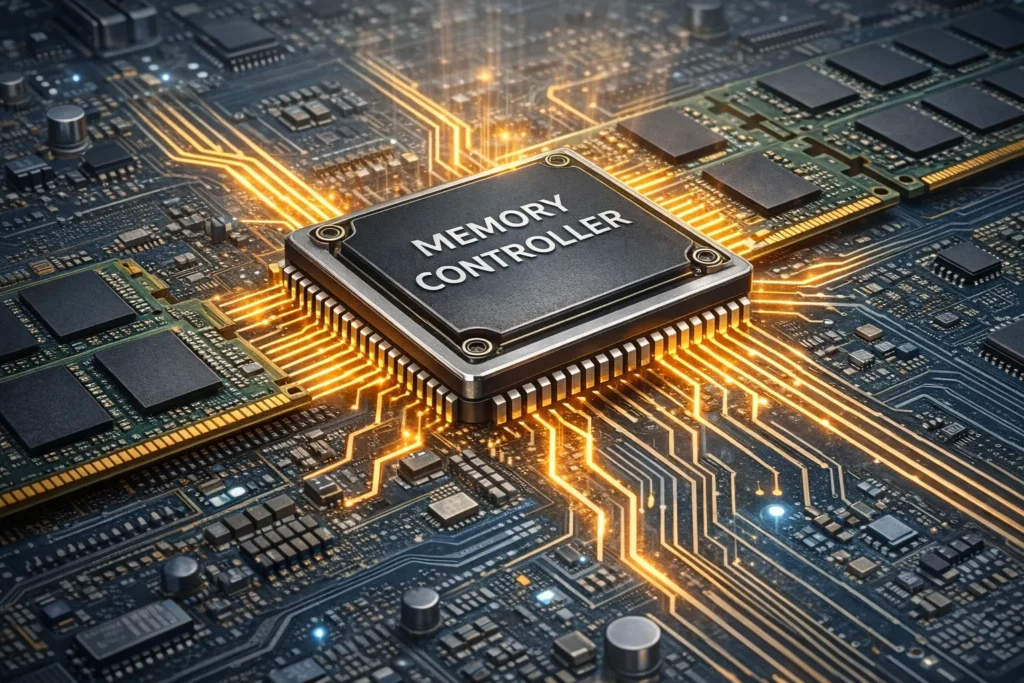
The Brain of Memory: The Memory Controller
The CPU doesn’t merely extend its hand and “grab” the data. The CPU communicates with a dedicated circuit called the Memory Controller (which is presently integrated into the CPU chip).
Traffic Control: It is responsible for handling up to billions of requests per second, ensuring that the traffic from your web browser, for example, doesn’t conflict with the traffic from your video game.
Address Translation: The CPU communicates in “logical addresses,” and the address must be translated from the exact “Row and Column” on the RAM chip.
Multiplexing: In this technique, to reduce the wiring cost, the controller transmits the “row address” followed by the “column address” on the same wires.
Units of Computer Memory
Memory is measured using:
- Bit
- Byte
- Kilobyte (KB)
- Megabyte (MB)
- Gigabyte (GB)
- Terabyte (TB)
Importance of Computer Memory
- Enables fast processing
- Supports multitasking
- Stores programs and data
- Improves overall system efficiency
Modern Developments in Computer Memory
- DDR5 RAM
- NVMe SSDs
- High-bandwidth memory (HBM)
- Cloud-based memory systems
Advantages of Using (Read Only Memory) ROM:
- Read Only Memory (ROM) Application There are several uses of ROM. Some of those uses include the following: It Supports the Booting Process − It supports the booting process of the computer and the loading of the operating system. Input/Output (I/O) Tasks − ROM carries out significant I/O operations. Stores Data − ROM stores the data and updates the firmware software. Embedded System – ROMs are commonly used inside microwave ovens, washing machines, etc. where operations are controlled via firmware. Consumer Electronics − It has applications in consumer electronics such as smartphones, in which it stores boot loaders or firmwares. Computer BIOS,
- It supports basic Input/Output System(BIOS) for PCs. ROM is a major memory component found in various electronic devices because of its usage such as reliability, security, and cost-effectiveness.
- Non-volatile memory :It is non-volatile and costs less than RAM.
- Its circuitry is quite simpler compared to that of RAM. It does not require any refresh. ROM allows fast accessibility to the data stored inside it It is dependable.
- The data will not be damaged. It ensures integrity and security.
Advanced Memory Types & Tech
But as technology continues to evolve, we are now facing more advanced types of “RAM” referred to as:
DDR (Double Data Rate)
Nowadays, the RAM is called “DDR,” as it sends information on the rise and fall of every clock cycle.
DDR4 vs. DDR5: The DDR5 is the latest technology. It is faster; also, the DDR5 relocates the power management (PMIC) part right on the RAM module. This increases efficiency and ensures that there is stability even with high-speed data transfers.
V-NAND(3D )
Found in SSD drives. Instead of arranging the memory modules in a plane on a semiconductor chip, the designer stacks the modules up like a high-rise building. This enables the construction of huge storage capacity (4TB+), the size of a candy stick.
NVMe (Non-Volatile Memory Express
Older SSDs required a “SATA” connection, which was based on slower, rotational hard drives. NVMe stands for “non-volatile memory express.” This is a communication interface specifically for flash memory. This will enable communication directly from the drive to the CPU through the PCIe interface, which is akin to moving from a one-lane highway to a 16-lane highway.
Memory Latency vs. Bandwidth
When purchasing or analyzing memory, the following two factors are the most important:
Bandwidth: How much data can be transferred at once (think of the width of a pipe).
Latency: How long it takes to actually start working on a single request (like how long it takes water to travel from the tap to the other side of the pipe when you turn it on).
Pro Tip: Latency trumps bandwidth for gaming, since games involve lots of fast, small requests. For video editing, bandwidth rules.
Conclusion
Computer memory is the foundation of all computing activities. From high-speed cache to large secondary storage, each type of memory plays a vital role. With continuous advancements, computer memory is becoming faster, smarter, and more efficient, supporting the growing demands of modern technology.